Page Elements
Page elements are the building blocks of every stage. The elements array in a stage is rendered top‑to‑bottom as a single column; what you list first appears highest on the page.
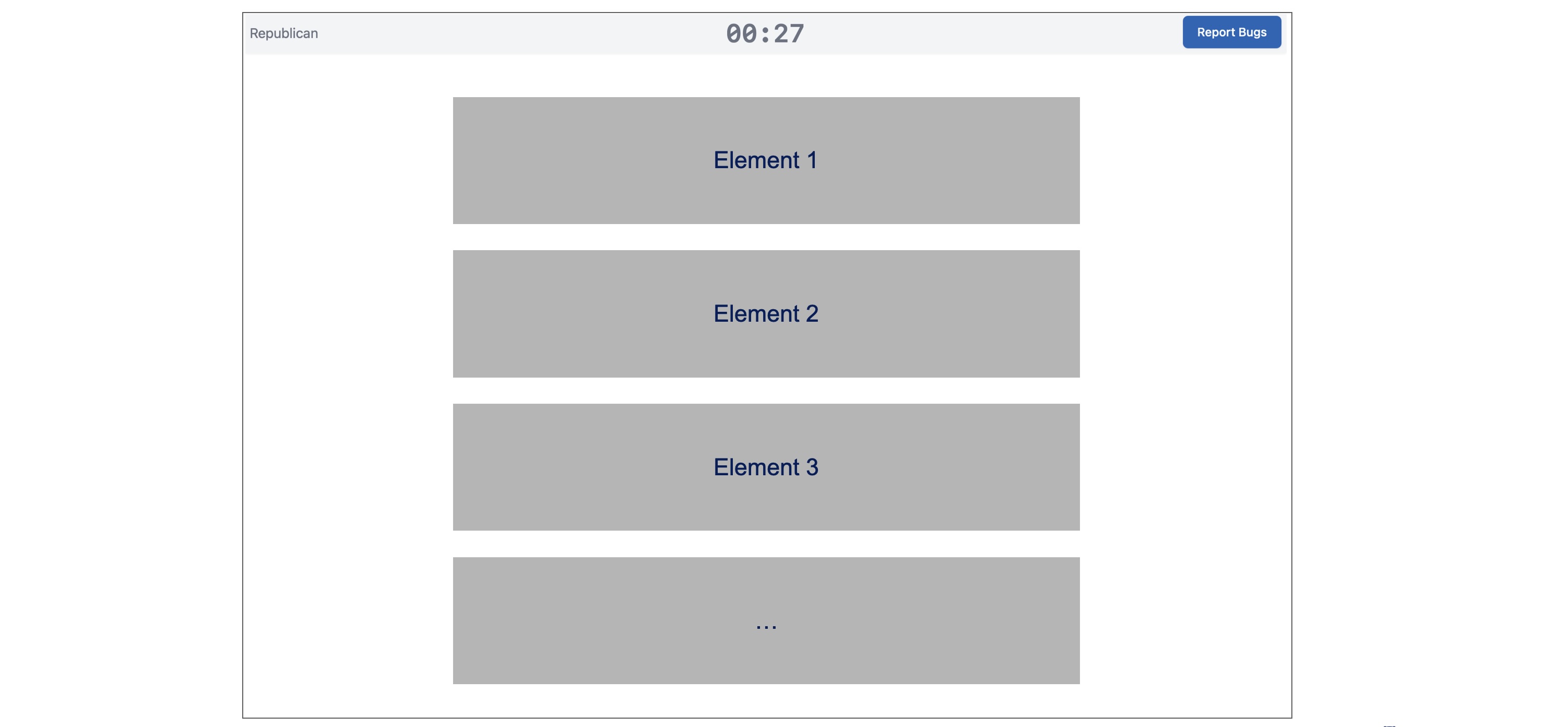
There are a variety of different types of page elements, described with their syntax below. All elements accept the standard Empirica timing and visibility helpers:
name- assign a label to any saved content or timing information associated with the element.displayTime/hideTime— Optional. Show or remove an element partway through the stage. Defaults to displaying for the full stage if unspecified.showToPositions,hideFromPositions— Optional. Limit an element to specific player positions: showToPositions will display only to player positions included in the list.conditions- an array of more complex conditions that allows items to be shown based on responses to other elements in the survey, participant attributes, etc. See conditions
Use these tools to choreograph multi-part screens without creating separate stages.
Audio
Plays a single audio asset once per stage load. Provide file referencing a path in deliberation-assets. Note that browsers often require a prior user interaction before auto-playing audio. This shouldn't be a problem unless the participant refreshes the page and doesn't interact with it before the audio is supposed to play.
- type: audio
  file: projects/example/audio/chime.mp3
Display
Shows the response captured by another element (usually a prompt) as a styled blockquote. You can display anything accessible using the Reference Syntax, from any participant in the current game, in either prior stages or the current stage, but not (for obvious reasons) future stages.
- type: display
  promptName: topicA_prompt
  position: shared
Prompt
Renders a question or text from a prompt markdown file. To specify a prompt in the treatment manifest, prompts only need to know which Markdown file to load, a name that should be associated with any data collected by the prompt element, and a flag for whether responses are collected from each individual or the group as a whole. A typical element looks like:
- type: prompt
  file: projects/example/prompts/topicA.md
  name: topicA_prompt # optional storage key
  shared: true # optional; write a single response shared across all participants that any participant can edit
See Prompt Files for explanations of the various types of prompt and the syntax for creating prompt markdown files.
Qualtrics
This component embeds a Qualtrics survey inside an iframe in the current stage display. This is intended primarily as an escape hatch to allow study designers to use Qualtrics surveys to implement parts of the experiment that Deliberation Lab does not yet support. Provide url and optional urlParams. The component automatically appends deliberationId and sampleId, listens for the Qualtrics end-of-survey message, and records the session metadata. Completing the Qualtrics survey submits the stage, so no separate submit button is required.
In your Qualtrics survey, make sure to either collect the deliberationId from the URL parameter, or ask for participant identifiers, so you can match data across platforms.
Optional urlParams let you append literal query parameters or reference values captured elsewhere in the study. Each parameter accepts:
key: required query parameter name.value: optional literal string/number/boolean.reference: optional Reference Syntax pointer instead ofvalue— resolved per-participant at render time. You can also passpositionif you need a different subject (defaults toplayerwhen omitted).
- type: qualtrics
  url: https://upenn.qualtrics.com/jfe/form/SV_xxx
  urlParams:
    - key: condition
      value: topicA
    - key: prolificId
      reference: urlParams.PROLIFIC_PID
Tracked Link
Adds an instrumented external link to the element column. Clicking the link opens the destination in a new tab, records the click with the current stage/time, allows the participant to become idle while they are away, and logs how long it takes them to return focus to the Deliberation Lab tab. Multiple click/return cycles are stored so you can analyze repeated attempts.
Provide a name, url, and displayText. Optional urlParams let you append literal query parameters or reference values captured elsewhere in the study. Each parameter accepts:
key: required query parameter name.value: optional literal string/number/boolean (leave blank to append an empty value like?flag=).reference: optional Reference Syntax pointer instead ofvalue. You can also passpositionhere if you need a different subject (defaults toplayerwhen omitted).
Exactly one of value or reference should be provided for each parameter unless you intentionally want an empty value.
- type: trackedLink
  name: signup_link
  url: https://example.org/form
  displayText: Complete the bonus signup form
  urlParams:
    - key: participant
      reference: participantInfo.sampleId
    - key: source
      value: deliberation_lab
    - key: flag # appends as ?flag=
Each tracked link always includes a small reminder below the anchor (“Link opens in a new tab. Return to this tab to complete the study.”) and an external-link icon, so provide any longer instructions via prompts above the element.
Separator
Renders a horizontal rule to break up long pages. Set style to thin, regular (default), or thick.
- type: separator
  style: thick
  testId: stage_break
Submit Button
Adds a button participants can click when they are done with the stage.
When omitted, stages advance only when the timer expires (or you set player.stage.set("submit", true) via custom logic). You need to add a submit button to every intro or exit stage (or include a video or qualtrics survey) in order for the stage to advance.
- type: submitButton
  buttonText: Continue # you can override the default button text ("Next")
  name: readiness_check # naming the button gives you stage submission timing
Survey
Renders a survey exported from the @watts-lab/surveys package. Pass surveyName (matching an exported component) and, optionally, name to override the storage key.
- type: survey
  surveyName: ExampleSurvey
  name: pre_discussion_example_survey
See surveys for a full list and description of survey elements.
Timer
Displays a progress bar tied to stage time. Options:
startTime/endTime– when the bar starts/stops counting (defaults to stage bounds).warnTimeRemaining– number of seconds beforeendTimewhen the bar turns red.
The timer respects displayTime and hideTime, so you can reveal it mid-stage.
- type: timer
  startTime: 0
  endTime: 600
  warnTimeRemaining: 60

Training Video
Embeds a synchronized YouTube (or compatible) video. Video time is tied to the stage time, and reconnecting participants jump to the time that matches the current stage clock. Submits the stage automatically when the video ends.
- type: video
  url: https://youtu.be/QC8iQqtG0hg